Secrets Management Part 3 – Storing and Retrieving Secrets from macOS Keychain
A lighter, lower-friction alternative to gopass for Mac users: storing secrets in Keychain and loading them with direnv

gopass for managing local secrets, using tools already built into macOS. In this post I show you how to set it up with direnv, go through the security trade-offs, and give you what you need to decide whether Keychain or gopass better suits your workflow.Why bother?
This post gives macOS users another option: Keychain, the secret store built into macOS.
Keychain vs gopass
Both options do the same thing: securely store a secret that can then be loaded into your shell ready for use in scripts and applications. gopass (or rather GPG with a hardware token) does come with some downsides, though.
gopass stores each secret in its own GPG-encrypted file. If you're loading multiple secrets and variables in a .envrc file and using a hardware token such as a YubiKey (which you should) with a touch policy configured (which you should), you have to unlock gpg-agent, then touch your hardware token for every secret. Call me lazy, but this soon becomes cumbersome.
Your login keychain, on the other hand, is an encrypted file on your device that is unlocked with your login password when you sign in. It stays unlocked for the whole session by default, but you can set it to lock after a period of inactivity or when the device sleeps. Once it is unlocked, your shell can access the secrets.
The main differences between the two:
| Keychain | gopass | |
|---|---|---|
| Storage | Encrypted keychain file, unlocked with your login password (or its own password for a separate keychain) | One GPG-encrypted file per secret |
| Unlock model | Open for the login session unless you configure a lock timer | Locked again when the gpg-agent cache expires |
| Hardware token | Not supported | Supported, e.g. a YubiKey, with an optional touch per decryption |
| Portability | macOS only | Linux, macOS and Windows, with git sync and multiple stores |
| Setup | Nothing to install | Install gopass and GnuPG, create a GPG key pair, run gopass init |
| Backup | The keychain file and its password | Your GPG private key and the store |
Keychain edges it for me when on macOS for the following reasons:
- Fewer
pinentryprompts and hardware token touches (especially whendirenvis loading nested.envrcfiles as I'm moving through directories). - No managing a separate GPG key pair.
- Keychain allows per-app access control, meaning I can be granular in which apps can access which secrets. (less useful when everything reads through the
securityCLI).
Security trade-offs
Keychain isn't a like-for-like swap for gopass and there are compromises to the more lightweight setup. Lunch is rarely free.
Once the login keychain is unlocked, anything running as your user can read your secrets without a prompt, including any compromised packages or extensions.
gopass with a touch-enabled hardware token does protect against silent reads, but malware could still read the variable once it has been loaded.You can, however, start to mitigate this with your keychain config:
- Set the keychain to lock when the Mac sleeps.
- Configure a lock timeout on the keychain.
- Use a separate keychain with its own password.
- Where possible, use least-privilege scoped tokens to limit the blast radius if a secret does leak (the best defence for exposed secrets no matter what storage you're using).
Creating a separate keychain
My recommendation is to create a separate keychain from the login one to store secrets you will be using in development and with AI agents. This reduces a number of the risks we've already mentioned, and brings Keychain closer to the security posture of gopass, but with less friction.
Let's create a keychain that:
- Has a 900 second (15 mins) timeout.
- Locks when the Mac sleeps.
- Has a different password to your local macOS account password.
Start by creating the keychain. Keychain files are stored in the directory ~/Library/Keychains/ and have a .keychain-db extension:
security create-keychain ~/Library/Keychains/papermtn.keychain-dbYou will be asked to create a password for your new keychain. Use something other than your local macOS password.
Next (in "setup steps no one asked for") you need to add your new keychain to the keychain search list. Use the -s flag of list-keychains which, annoyingly, doesn't append; it replaces the whole list. To get around this, use this command to read the current list and use xargs to enter that, plus your new keychain, as the keychain search list:
{ security list-keychains -d user; echo "\"$HOME/Library/Keychains/papermtn.keychain-db\""; } \
  | xargs security list-keychains -d user -s
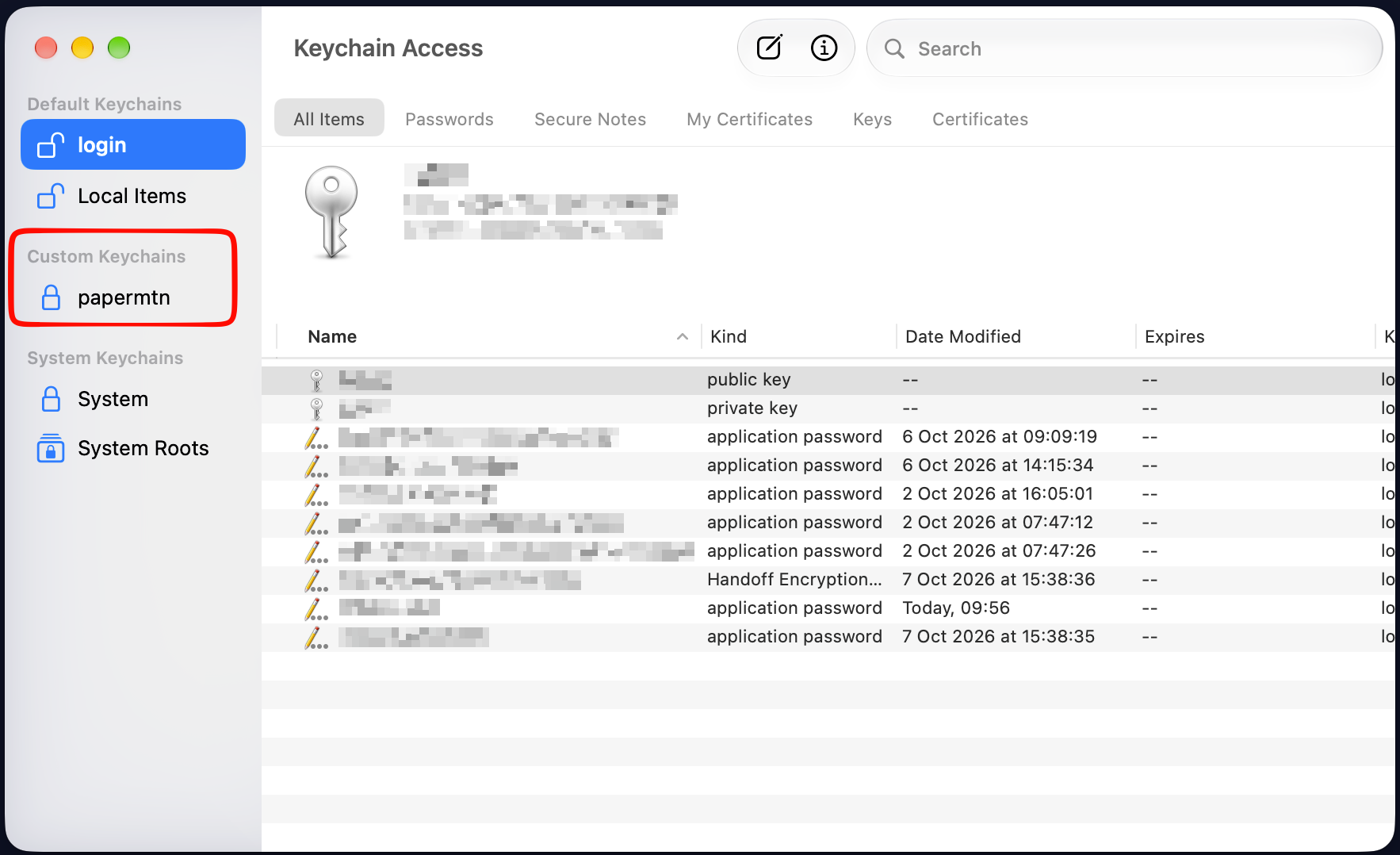
You can now see your new keychain when listing user keychains:
security list-keychains -d user
It will also now show in Keychain Access as a custom keychain
Now to apply our settings:
-l- Lock keychain when the system sleeps.-u- Lock keychain after timeout interval.-t[timeout]- Specify timeout interval in seconds (omitting this option specifies "no timeout").
security set-keychain-settings -l -t 900 -u ~/Library/Keychains/papermtn.keychain-dbUse this command to apply our settings to our new keychain
Then verify the settings have been applied:
security show-keychain-info ~/Library/Keychains/papermtn.keychain-db
I've put all of these steps together in a script you can use yourself (set your own values for KC_NAME and TIMEOUT):
KC_NAME="dev-keychain"    # Update with your own name
TIMEOUT=900    # Update with your own timeout in seconds
KC="$HOME/Library/Keychains/${KC_NAME}.keychain-db"

# Create the keychain (you'll be asked for a password)
security create-keychain "$KC"

# Add it to the search list, keeping the existing entries
{ security list-keychains -d user; echo "\"$KC\""; } \
  | xargs security list-keychains -d user -s

# Apply settings
security set-keychain-settings -l -u -t "$TIMEOUT" "$KC"

# Check the result
security list-keychains -d user
security show-keychain-info "$KC"
Saving a secret
Adding a secret uses security's add-generic-password command. These are the details from the man page:
add-generic-password [-h] [-a account] [-s service] [-w password] [options...] [-A|-T appPath] [keychain]This is what each flag means:
| Flag | What it does |
|---|---|
-a |
The account, set to your username. |
-s |
The service name, which is what you look the secret up by. |
-U |
Updates the item if it already exists. Re-running the command rotates the secret. |
-w |
The secret to store. With no value, prompts for it, but only when -w is the last argument. |
This is how I would create a secret in my new keychain:
security add-generic-password -a "$USER" -s "papermtn/slack/prd/bot-token" -U -w "ShhItsASecret" ~/Library/Keychains/papermtn.keychain-db
I've saved my secret, but you may have spotted an issue... we've got a plaintext secret in our command. This is due to a contradiction in how the security client works:
- The
-wflag says it must come at the end to prompt the user for the secret. add-generic-password's man page says that the keychain must come at the end.
Don't worry, the solution to this turns out to also be the solution to another quirk of the security client...
The getpass() gotcha
When you use a bare -w and let security prompt you for the secret, it reads your input with with macOS’s getpass(), inherited from BSD. getpass() discards anything beyond 128 characters without warning, so any secrets longer than that get truncated.
I’m going to create a secret using the prompt, with the 200-character string below:
A123456789B123456789C123456789D123456789E123456789F123456789G123456789H123456789I123456789J123456789K123456789L123456789M123456789N123456789O123456789P123456789Q123456789R123456789S123456789T123456789When viewing the secret, you can see it has been cut short:

So we've got two problems:
- The prompt can't take a keychain path after it.
- It can't take a long secret either.
The fix for both is the same: skip the prompt and pass the secret as the value of -w. Read it into a variable first to keep it out of your shell history:
read -rs "SECRET?Secret: " && echo
security add-generic-password -a "$USER" -s "papermtn/slack/prd/bot-token" -U -w "$SECRET" \
  ~/Library/Keychains/papermtn.keychain-db
unset SECRET
read -rs reads your input without outputting it to the screen, and unset clears the variable once you're done. You can now put the keychain path at the end of the command.
read has its own limit of around 1024 characters from the terminal input buffer. For secrets longer than that, copy the secret to your clipboard and pass it in directly, then clear the clipboard:
security add-generic-password -a "$USER" -s "papermtn/slack/prd/bot-token" -U -w "$(pbpaste)" \
  ~/Library/Keychains/papermtn.keychain-db
pbcopy < /dev/null
Naming convention
“There are only two hard things in Computer Science: cache invalidation and naming things.”
— Phil Karlton
gopass encourages a naming convention via its tree structure. Keychain allows slashes in secret names, and I strongly recommend you make use of them to stick to a naming convention. I use:
<owner-or-context>/<service>/<environment>/<secret-name>You have to fetch keychain secrets by their full name in the CLI, and the easiest way to find a secret you've forgotten the name of is in Keychain Access, which displays secrets in alphabetical order (meaning all of your related secrets will be kept together). You can also find all secrets for a service or organisation if you're using a naming convention.
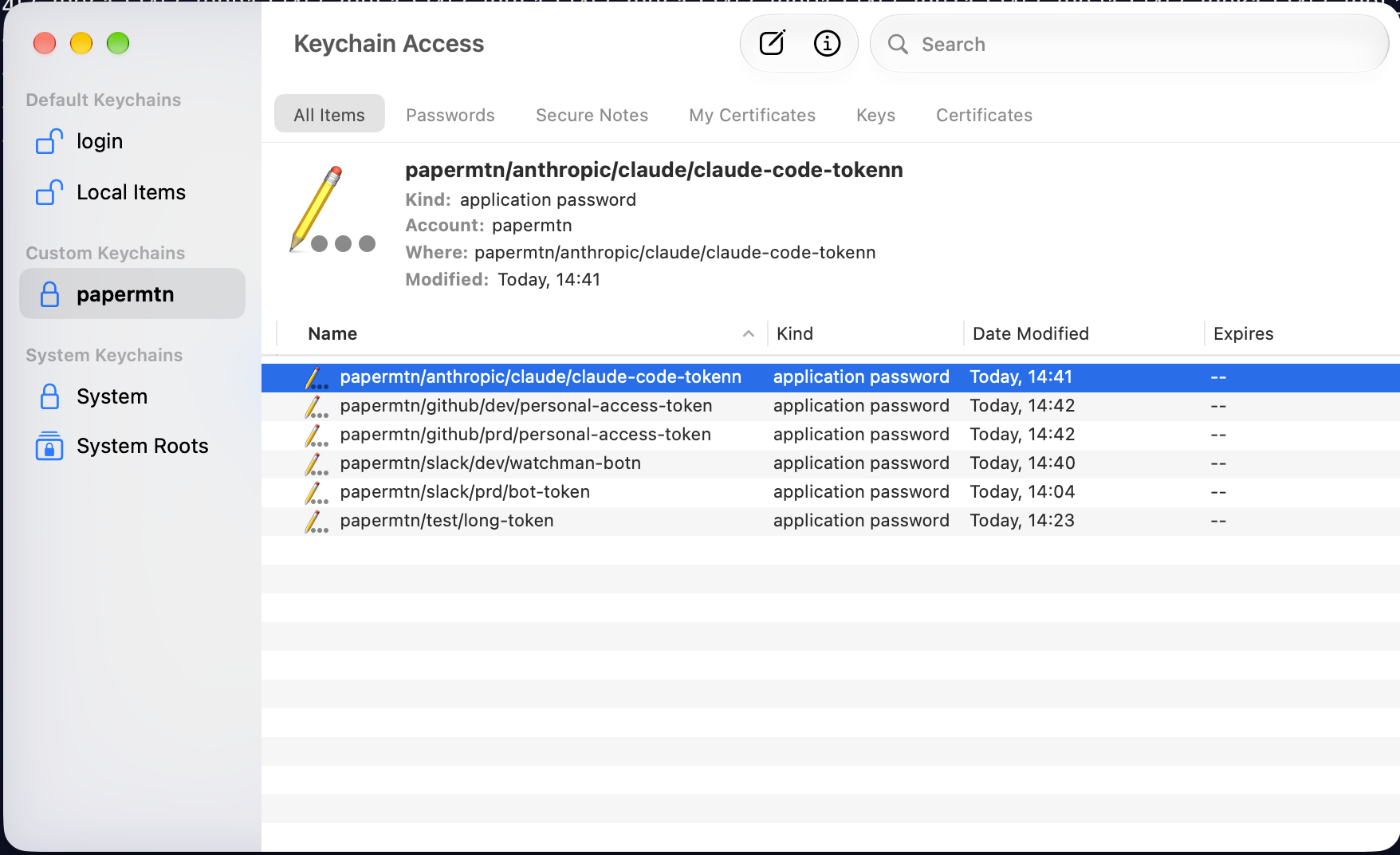
You can also use the CLI to dump the keychain and grep through it:
security dump-keychain papermtn.keychain-db | grep -i "papermtn/slack"
Future you will thank you for having a naming convention from the start.
Getting a secret
Getting a secret is straightforward, assuming you know the name:
security find-generic-password -a "$USER" -s "papermtn/slack/prd/bot-token" -w
The command looks through all of the keychains you have added to the search list, so you don't have to specify which keychain to look in
Wrapping it in functions
You're probably thinking "this is way more complicated than gopass" and, at the minute, you're right. To simplify things let's wrap the commands in two functions that are easier to use. They'll live in one file in your dotfiles, and are sourced by both zsh and direnv:
save-keychain-secretget-keychain-secret
First of all, put the following in ~/.dotfiles/shell/keychain.sh:
# ~/.dotfiles/shell/keychain.sh

# Helpers for storing and retrieving secrets in the macOS Keychain.
# Written to work in both zsh and bash so direnv can use them too.
# Sourced by zsh/.functions and direnv/direnvrc.

# Keychain to use.
# Change this to your own keychain's path, or delete the
# line to use the default keychain search list.
: "${KEYCHAIN:=$HOME/Library/Keychains/papermtn.keychain-db}"

# Get a secret from the macOS Keychain (generic password, account = $USER).
# Usage: get-keychain-secret <name>
get-keychain-secret() {
  if [ -z "$1" ]; then
    echo "usage: get-keychain-secret <name>" >&2; return 2
  fi
  local args=(find-generic-password -a "$USER" -s "$1" -w)
  if [ -n "${KEYCHAIN:-}" ]; then args+=("$KEYCHAIN"); fi
  security "${args[@]}" 2>/dev/null \
    || { echo "Keychain item '$1' not found (or keychain is locked)" >&2; return 1; }
}

# Save (create or update) a secret in the macOS Keychain.
# Usage: save-keychain-secret <name>               (prompts, hidden, asked twice)
#        pbpaste | save-keychain-secret <name>     (reads from stdin)
save-keychain-secret() {
  if [ -z "$1" ]; then
    echo "usage: save-keychain-secret <name>" >&2; return 2
  fi
  local secret confirm
  if [ -t 0 ]; then
    printf 'Secret for %s: ' "$1" >&2; read -rs secret; echo >&2
    printf 'Confirm: ' >&2; read -rs confirm; echo >&2
    if [ "$secret" != "$confirm" ]; then
      echo "Secrets did not match, nothing saved" >&2; return 1
    fi
  else
    secret="$(cat)"
  fi
  if [ -z "$secret" ]; then
    echo "Empty secret, nothing saved" >&2; return 1
  fi
  local args=(add-generic-password -U -a "$USER" -s "$1" -w "$secret")
  if [ -n "${KEYCHAIN:-}" ]; then args+=("$KEYCHAIN"); fi
  security "${args[@]}"
}
Note:
$KEYCHAINpoints both functions at your created keychain. Make sure you change this value, otherwise you will be looking for mine, and you shouldn't be on my laptop.- There's no way to pass the secret as an argument, as that would put it in your shell history. Pipe long secrets:
pbpaste | save-keychain-secret papermtn/slack/prd/bot-token.
Source the file from your .zshrc (or a file it loads):
source "$HOME/.dotfiles/shell/keychain.sh"
Then usage is simple:
save-keychain-secret papermtn/new/from/function
get-keychain-secret papermtn/new/from/function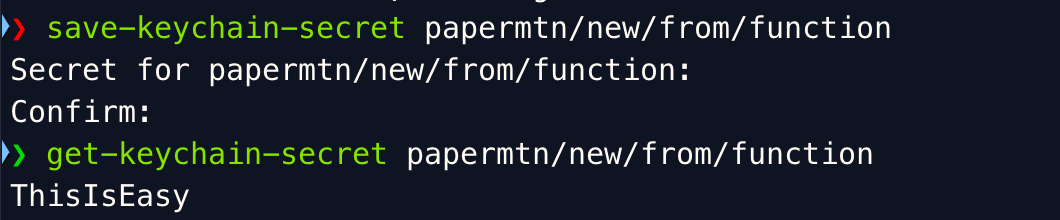
Using the functions with direnv
The last part is to make sure our functions work with direnv in our .envrc files. direnv doesn't run your .envrc in your interactive shell; it runs it in a separate bash subprocess that doesn't use functions from your .zshrc.
You can define a config file for direnv, though: ~/.config/direnv/direnvrc. direnv loads this before every .envrc. Source the shell file in here:
# ~/.dotfiles/direnv/direnvrc
# Symlinked to ~/.config/direnv/direnvrc and sourced by direnv before every .envrc.

source "$HOME/.dotfiles/shell/keychain.sh"
Then symlink it into place:
mkdir -p ~/.config/direnv
ln -sf ~/.dotfiles/direnv/direnvrc ~/.config/direnv/direnvrc
Then your .envrc can use the function to load the secret into variables:
export SLACK_TOKEN="$(get-keychain-secret papermtn/slack/prd/bot-token)"
Wrapping up
You should now have:
- A dedicated keychain with its own password, which locks on sleep and after 15 minutes of inactivity.
- Two functions for saving and getting secrets, shared between your shell and
direnv. .envrcfiles that load secrets from Keychain, with no plaintext secrets in them.
If you're a current gopass user on macOS, this may look like a lot of effort for a similar end result. Arguably that's true, but after a one-time setup of your keychain and the functions to wrap the save and get commands, you should find this workflow fairly frictionless. For my use case, I find it easier than gopass, but your mileage may vary.
You can also adapt the setup to suit you. Use the login keychain if you'd rather have no timeout at all, adjust the timeout on your separate keychain to fit how you work, or mix the two approaches, keeping high-value production secrets in gopass behind a hardware token, and using Keychain for everything else.
If you've landed here first, Part 1 covers loading secrets with direnv, and Part 2 covers encrypting them with gopass and GPG. Make sure to give them a read.
Resources
- Apple Keychain Access User Guide
securityutility man page- HackTricks macOS Keychain page (some useful information about Keychain internals)